VS Code has had workspace settings (settings.json) for years. But settings.local.json is the file that most developers either don’t know about or underuse — and if you’re running Claude Code in VS Code, it becomes genuinely important.
This guide covers the file format, its relationship to Claude Code’s own configuration, and the practices that keep your setup clean, fast, and team-friendly.
What is settings.local.json?
VS Code has a layered settings system. At the highest scope is your user-level settings.json (~/Library/Application Support/Code/User/settings.json on macOS). Workspace settings live at .vscode/settings.json inside the project directory. Both of these are typically committed to version control.
settings.local.json sits alongside .vscode/settings.json at .vscode/settings.local.json. The key difference: it is not a native VS Code feature — it is a convention understood by certain extensions and tools, including Claude Code’s VS Code extension.
For Claude Code specifically, .vscode/settings.local.json is where you put machine-specific or user-specific configuration that should not be committed to the repo. Think of it as your personal layer on top of the workspace config.
Always add
.vscode/settings.local.jsonto your.gitignore. It’s the whole point of the file.
File syntax and structure
The file is plain JSON — no trailing commas, no comments (use // comments only if your tooling supports JSONC, which VS Code does natively):
{
  "claude.permissions": {
    "allow": ["Bash", "Read", "Write", "Edit"],
    "deny": []
  },
  "claude.autoApprove": false,
  "claude.model": "claude-sonnet-4-6",
  "terminal.integrated.defaultProfile.osx": "zsh"
}
The structure is flat key-value pairs, identical to any other VS Code settings file. You can put any valid VS Code setting here — the local file overrides the workspace file, which overrides the user file.
How Claude Code reads this file
When the Claude Code VS Code extension initializes, it merges settings from three places in priority order:
.vscode/settings.local.json← highest priority.vscode/settings.json- User-level
settings.json
The claude.* namespace in settings controls Claude Code behavior. The most important keys:
claude.permissions
Controls which tools Claude is allowed to use automatically vs. which require your approval.
{
  "claude.permissions": {
    "allow": ["Read", "Glob", "Grep"],
    "deny": ["Bash"]
  }
}
The allow list grants automatic execution without a user prompt. The deny list blocks those tools entirely. Tools not listed in either fall into the default behavior determined by the permission mode.
Practical recommendation: Put Bash in allow only if you trust the project and are actively working in it. For exploratory work in unfamiliar repos, let it stay in the default confirm-mode.
claude.autoApprove
A blunt instrument: true means Claude runs all tool calls without asking. Useful for trusted long-running tasks, dangerous in general.
{
  "claude.autoApprove": false
}
Keep this false in your local file and override it explicitly when you need it, rather than leaving it on globally.
claude.model
Override the model Claude Code uses for this workspace:
{
  "claude.model": "claude-opus-4-6"
}
Useful when a project needs a more capable model (complex refactors, unfamiliar codebases) or a faster one (simple edits, tight iteration loops).
Current model IDs:
claude-opus-4-6— most capable, slowerclaude-sonnet-4-6— balanced (default)claude-haiku-4-5-20251001— fastest, best for simple tasks
Interaction with CLAUDE.md
settings.local.json configures the tool behavior — what Claude can do and how it runs. CLAUDE.md configures Claude’s knowledge and instructions — what it knows about the project, conventions to follow, patterns to avoid.
They work at different layers:
| File | Controls | Committed? |
|---|---|---|
.vscode/settings.local.json | Tool permissions, model, IDE behavior | No — gitignore it |
.vscode/settings.json | Shared workspace IDE settings | Yes |
CLAUDE.md | Claude’s project knowledge and instructions | Yes |
~/.claude/CLAUDE.md | Global Claude instructions for all projects | n/a (user-level) |
A common mistake is putting project-specific Claude instructions in settings.local.json. They belong in CLAUDE.md. settings.local.json is purely configuration, not instruction.
Best practices
1. Gitignore it immediately
Add this to .gitignore before anything else:
.vscode/settings.local.jsonIf you commit it accidentally, it leaks your local machine configuration and can create friction for teammates with different setups.
2. Keep it minimal
Only put things in settings.local.json that genuinely differ between machines or users. Resist the urge to dump all your personal preferences here — those belong in your user-level settings.json so they travel with you across all projects.
A good local file might be 5–10 keys. If it’s growing large, audit what actually needs to be local vs. shared.
3. Use it to manage trust levels per-project
Different projects warrant different permission levels. You might want full auto-approval on your own personal projects, but careful confirmation-mode on a client’s repo or an open-source contribution.
// .vscode/settings.local.json in a trusted personal project
{
  "claude.autoApprove": true,
  "claude.permissions": {
    "allow": ["Bash", "Read", "Write", "Edit", "Glob", "Grep"]
  }
}
// .vscode/settings.local.json in an unfamiliar repo
{
"claude.autoApprove": false,
"claude.permissions": {
"deny": ["Bash"]
}
}4. Pair with a workspace settings.json for team defaults
Your teammates should have a sane baseline in .vscode/settings.json. Your local file then customizes on top of that. Example split:
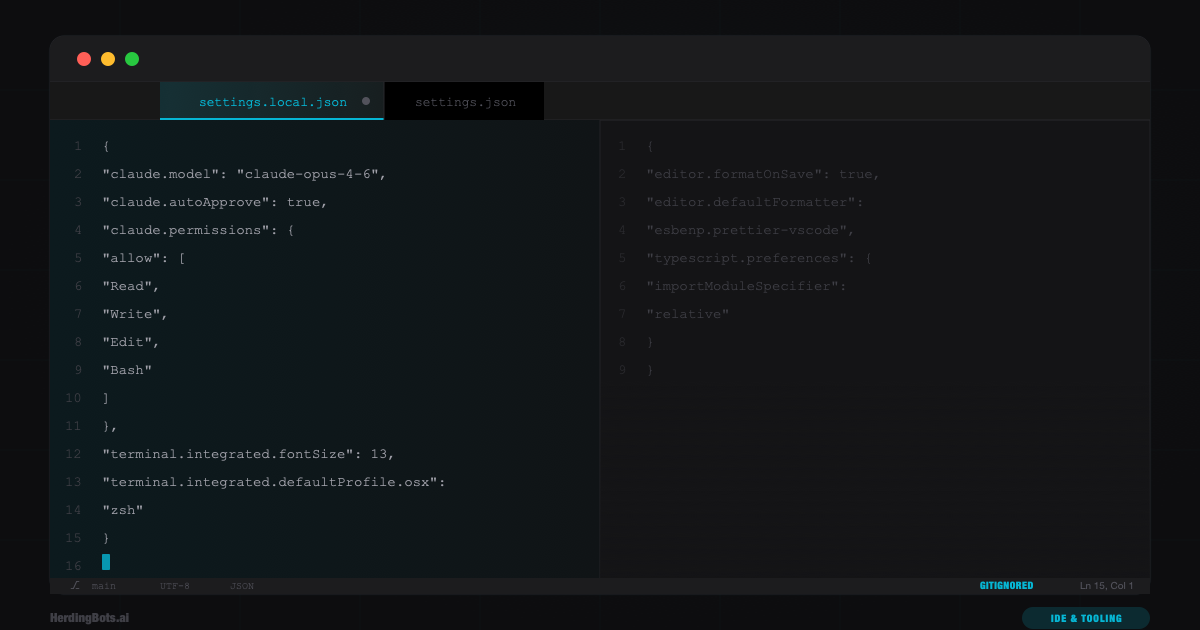
.vscode/settings.json (committed):
{
  "editor.formatOnSave": true,
  "editor.defaultFormatter": "esbenp.prettier-vscode",
  "typescript.preferences.importModuleSpecifier": "relative"
}
.vscode/settings.local.json (gitignored):
{
  "claude.model": "claude-opus-4-6",
  "claude.autoApprove": false,
  "terminal.integrated.fontSize": 13
}
5. Document what should go in it
If your project has Claude Code in the workflow, add a note in CLAUDE.md or the README explaining what keys teammates might want to set locally:
## Local setup

Create `.vscode/settings.local.json` (gitignored) to configure Claude Code per-machine:

\```json
{
  "claude.model": "claude-sonnet-4-6",
  "claude.autoApprove": false
}
\```

Adjust `claude.model` based on task complexity. See CLAUDE.md for project-specific conventions.
Troubleshooting
Claude Code isn’t picking up my local settings
Check that:
- The file is at
.vscode/settings.local.json(not.claude/settings.local.jsonor elsewhere) - The JSON is valid — a single trailing comma or missing brace will silently break the whole file
- The VS Code extension is up to date
My settings keep getting overwritten
This usually means something in your user-level settings.json is conflicting. Local settings should win, but if a workspace extension is writing to the workspace settings, it may stomp your local file. Check what’s modifying the file with VS Code’s Settings editor (look for the source annotation on each setting).
Teammates are seeing my local Claude configuration
You committed the file. Remove it from git:
git rm --cached .vscode/settings.local.json
echo ".vscode/settings.local.json" >> .gitignore
git commit -m "remove settings.local.json from tracking"
That’s the full picture. settings.local.json is a small file with a specific job: keeping your personal, machine-specific configuration out of shared version control while still giving you full control over how Claude Code behaves in each project. Keep it small, keep it gitignored, and let CLAUDE.md handle the project-level instruction layer.